
Hotel Management
From reservation to check-out
From reservation to check-out, using the names shown in the actual interface.
1. Open the hotel and check setup
Sign in to the Users portal, open Hotel → Reception and select your hotel. Hotel operations are in the portal, not in Core GUI settings.
Administrators configure rooms, room types, rates and additional services under Setup. The hotel operations submenu covers housekeeping, tasks and maintenance. Accounting covers invoices, payment records, reversals, reports and business-day closing. Available actions depend on your permissions.
2. Reservation, room and day use
- In New reservation, choose Type of stay: Overnight stay or Day use.
- Enter arrival, departure and guest count. Day use has the same arrival and departure date and requires a matching day-use rate.
- Enter the reservation holder in Guest, then select an available Room and Price list. Wait for availability to update after changing dates.
- Choose New reservation status: confirmed or held with an expiry. Use Group reservation for multiple rooms.
- Click Reserve and check the save confirmation and reservation list.
Find a reservation searches guest name, room and reservation reference, including names entered without accents. Status and stay-type filters narrow the list; Show next 25 expands it. The current reservation is marked Selected for processing and remains visible even outside the filter.
3. Guest details and check-in
- Select the reservation. Under Guests on the selected reservation, click Add guest, enter each guest’s details and click Save guests. The reservation holder and the guest register are separate records.
- Check stay dates and room readiness. Before check-in, housekeeping must inspect the room and mark it Ready in the hotel operations submenu.
- For a confirmed reservation, click Check in guest and verify the updated stay status.
Saving guest details and checking into a room do not themselves send an eVisitor registration. The separate eVisitor guest registration section shows requests and outcomes when the integration is configured. Your administrator must arrange the required permissions and configuration before live use.
4. Additional services and stay charges
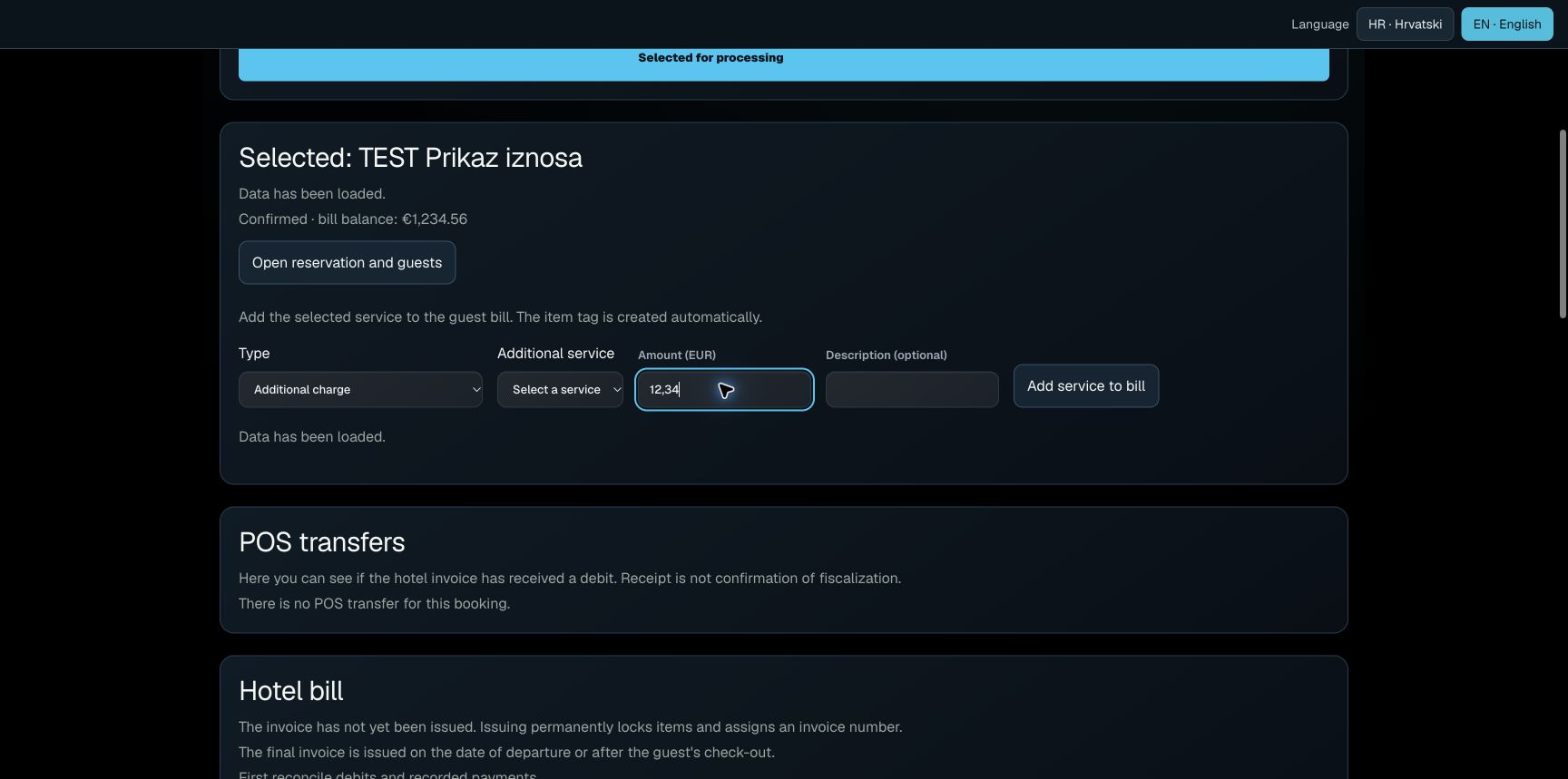
- On the selected reservation, click Open folio and payment.
- For breakfast or another service, select Type → Additional charge, then Additional service. Enter the amount and an optional description.
- Click Add service to bill. Check the entry under Guest folio items and the updated balance.
- For an in-house stay, use Calculate the night for the displayed due room nights, or Calculate day use. Departure day is not another room night. Day use is posted once at the agreed rate.
POS transfers appear separately. If a transfer is pending, check its outcome at the register; do not manually add the same service again.
5. Payment records, final invoice and check-out
- Review charges and the outstanding balance. For an already completed cash, card or bank payment, select Type → External payment / advance payment.
- Select the payment method, enter amount and description, then click Register. Verify the saved payment and remaining balance.
- On the departure date or after check-out, once the bill is settled and ready, click Issue the final invoice. Check the issuing status; an issued invoice locks its entries.
- Return through Open reservation and guests and click Check out the guest. Check-out requires all due stay charges, a settled balance and resolved POS transfers. The room then requires cleaning.
For an early departure before the planned date, first complete due stay charges and payment, check out the guest, then issue the final invoice using the actual departure.
Recording a payment does not charge a card or initiate a bank transfer. Record only payments already made. If an existing payment is shown, review it first. Confirm a separate additional payment only when the guest has actually paid an additional amount.
6. Corrections, reversals and refunds
Do not delete and recreate a paid invoice to correct a mistake. Before issuing, use the available charge correction and enter a reason. After issuing, an authorised user uses the appropriate full or partial reversal and, where needed, a replacement invoice.
An invoice reversal and a money refund are separate actions. Record only a refund already made, with its reason, method and amount within the available credit. Resolve any earlier submission or refund with an unknown outcome before creating another.
7. Connection loss, drafts and multiple receptionists
If the connection drops, keep your input and wait for it to return. When offered, use Repeat the same request to check or finish the previous request. Do not create a new payment or invoice to replace a request whose outcome is unknown.
Unsaved input is stored encrypted in the same browser and restored after refresh, closing the tab or signing in again as the same user. Another user cannot open your draft. Clearing browser data or moving to another device does not transfer the draft.
If another operator changes the record, saving an outdated draft is blocked. Review the current data and note changes you need to keep before selecting Discard this draft and load current data.
Each window keeps its own hotel, guest and financial entry type. Different staff members should use separate sign-ins. HR · Hrvatski and EN · English change presentation without posting services or payments or changing your entered amount.
8. Housekeeping - rooms and tasks
Room overview
Under Hotel → Operations, use Find a room and Cleaning status. Search accepts room names or references, including without accents. Show next 25 expands the list; Clear filters restores all rooms.
Tasks and history
Find a task searches by room, reference or date. Task status initially shows Open tasks. Choose Inspected, Canceled or All statuses for history. Tasks are ordered by due date, then urgency.
Editing assignments
Choose the room, employee, date, cleaning type and priority, then Assign task. Edit assignment opens an existing task, which remains visible outside the filter. Cancel editing closes the editor; it does not revoke the assignment.
Cleaning and inspection
Start cleaning records the start of work. Finish cleaning sends the task for review. The manager uses Confirm room inspection to mark the task inspected and the room ready. Enter a reason without guest personal information when reporting an obstacle or returning a room for cleaning.
Safety and maintenance
Staff see their own tasks; managers assign and inspect. If another operator changes the record, refresh and review its current state. HR/EN retains filters, names, notes and invoice identifiers. Under Room maintenance and blocking, Unblock room removes the block; it does not check out a guest or mark the room clean.
Try it with demo data
Explore the hotel workflows and features before choosing Orvestra.
Request demo accessNeed help?
Describe your steps and the message displayed. Do not send passwords, tokens or guest documents to support.
support@orvestra.eu